Create a Chrome Extension with React and inject it into webpages

Coding chrome extensions is something that I didn’t believe I would actually do until I actually needed something and I couldn’t find it on the Chrome Web Store.
I already had experience in frontend development, but I didn’t know even what technologies are necessary to create what I wanted. Fortunately, JavaScript is also used here and if you already know it pretty well, it’s going to be very easy for you.
I decided to create this article because a lot of what I found on the internet is with a custom webpack configuration, meaning you need to eject the app from CRA (create-react-app). That was not desirable by me so I took a look into Vite (pronounced /vit/, like “veet”). It is a build tool similar to Webpack, but it uses Rollup for bundling and native ES modules, which makes it blazing fast compared to Webpack (even v5).
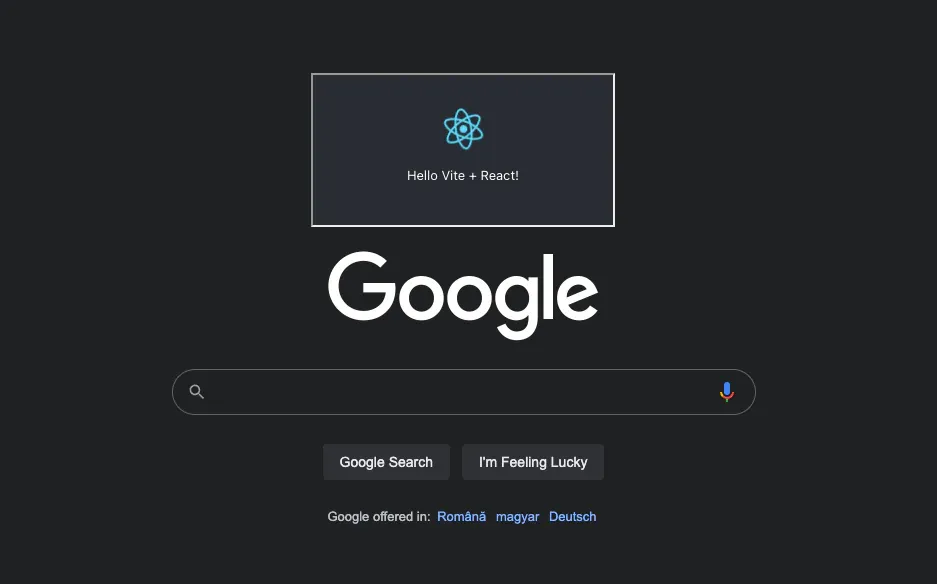
So today we’re going to make something that looks like this:
Getting started
So let’s start by creating the project. Run npm init vite@latest , choose your project name, select React, choose if you want it vanilla or with TypeScript (I recommend you go with TypeScript) then cd into the folder and install the dependencies ( npm i).
Creating the extension
Let’s create the manifest file now. Create the public directory, inside it the manifest.json and put the following:
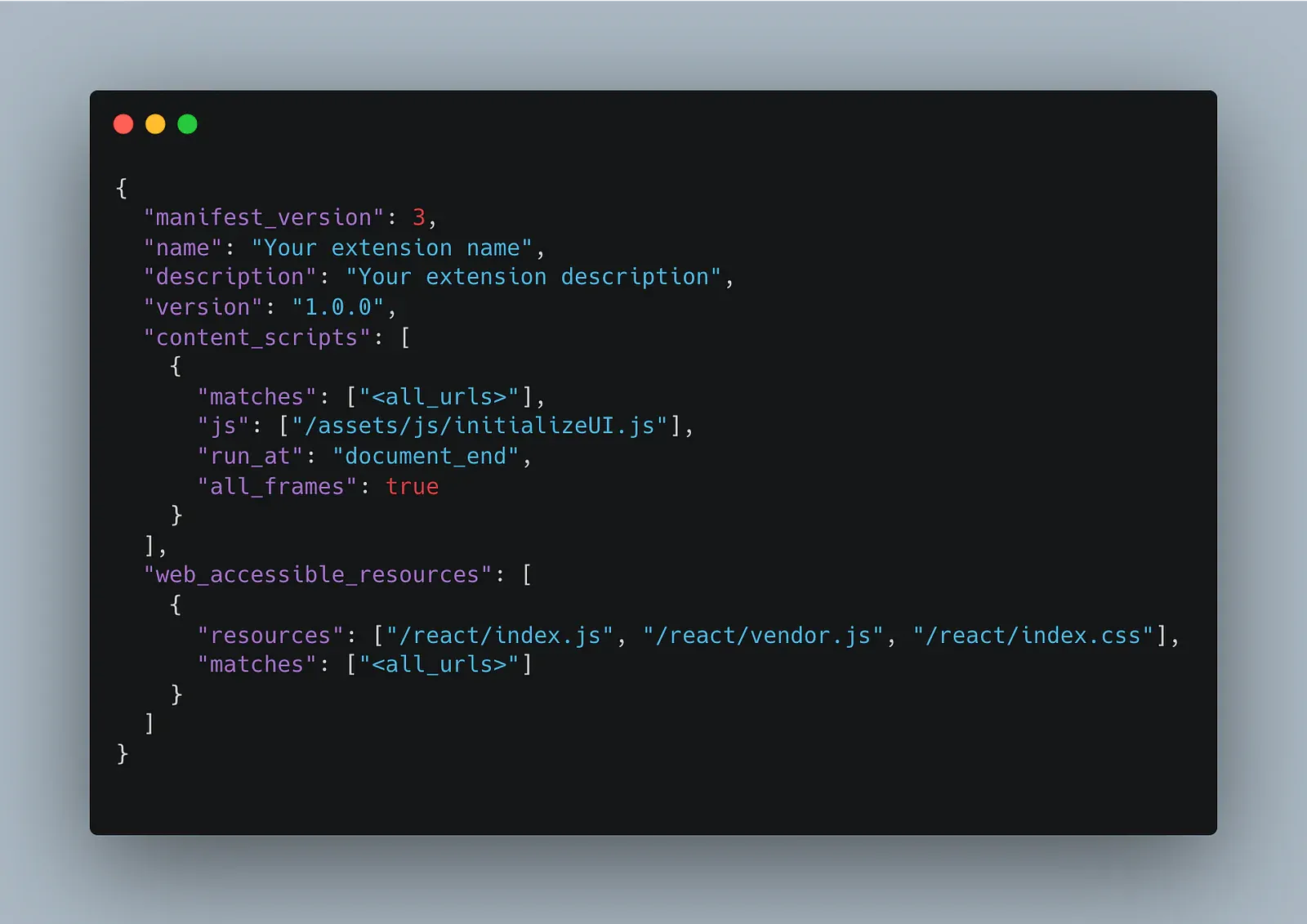
File: public/manifest.json
(don’t worry about copy pasting, you’ll get a GitHub link at the end)
This is the manifest file that will be interpreted by Chrome or Chromium-based browser. What we want to do is inject the js files that are built by Vite into the page. We’ll use a content script that does that, which will be named initializeUI.js
Our next file that needs to be edited is vite.config.ts (or js). We will get rid of the vendor chuck so that we always get the same files, so that we can target them in the manifest file:
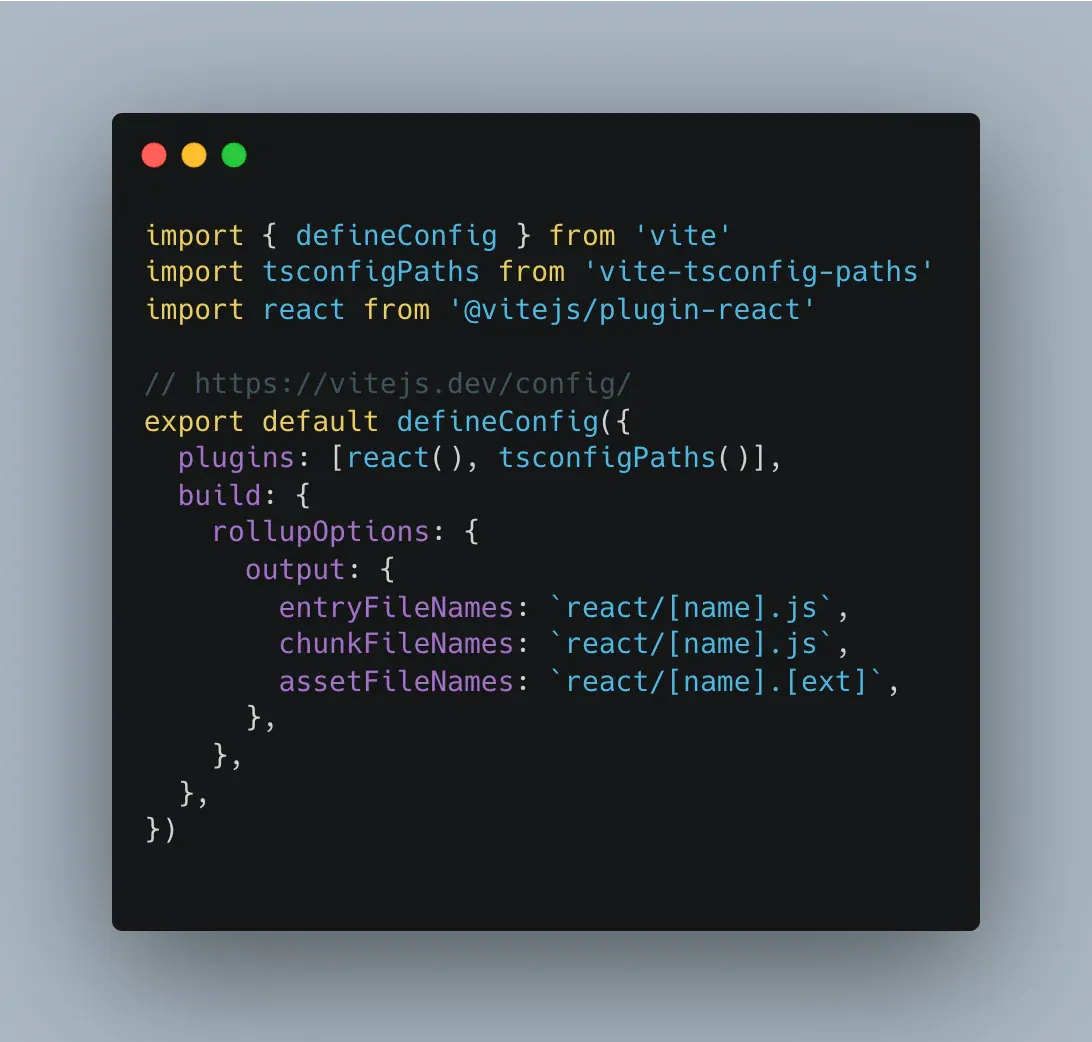
File: vite.config.ts
This will make sure we get a react folder when we create the build, with the assets named as we want them.
Injecting the app into webpages
What we need to do now is initialize the react app into the webpage. We do that with a content script that imports the build index file. Make sure that the id of the div in the index.html file is also put here in the app.id .
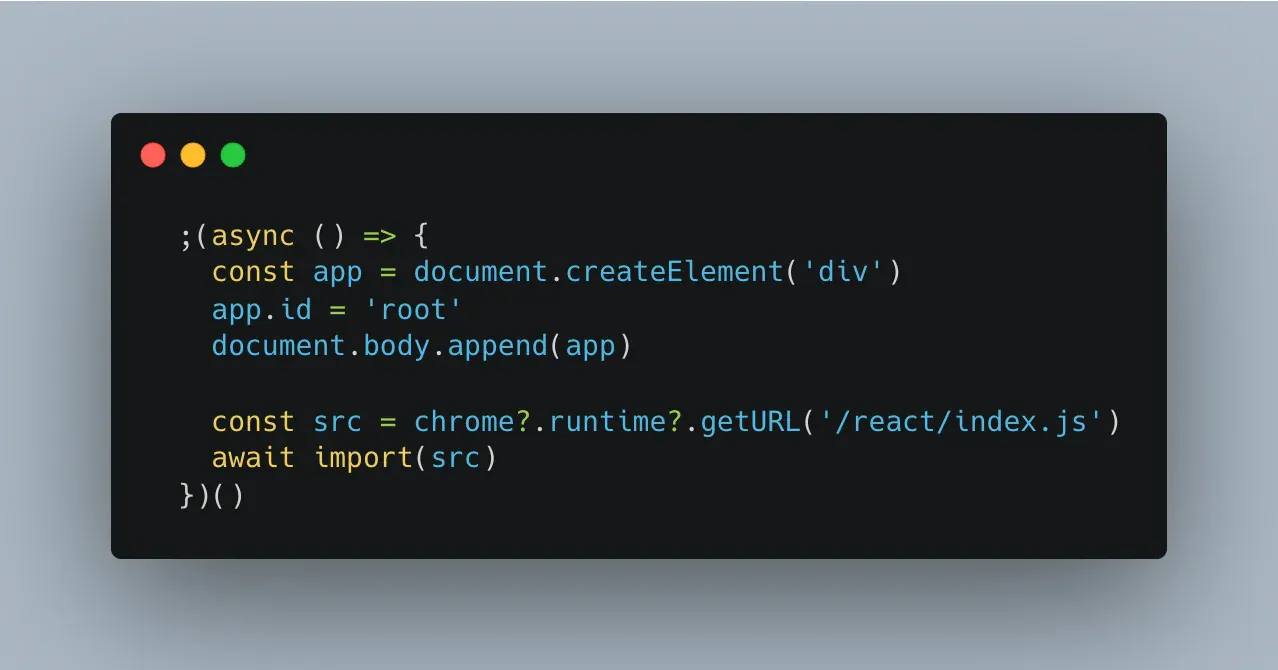
File: public/assets/js/initializeUI.js
And with this, we should be set. Let’s create a build and test out what we have.
We can go to chrome://extensions , enable developer mode, click on load unpacked and select the dist folder. Then let’s go to google.com and check out what we have.
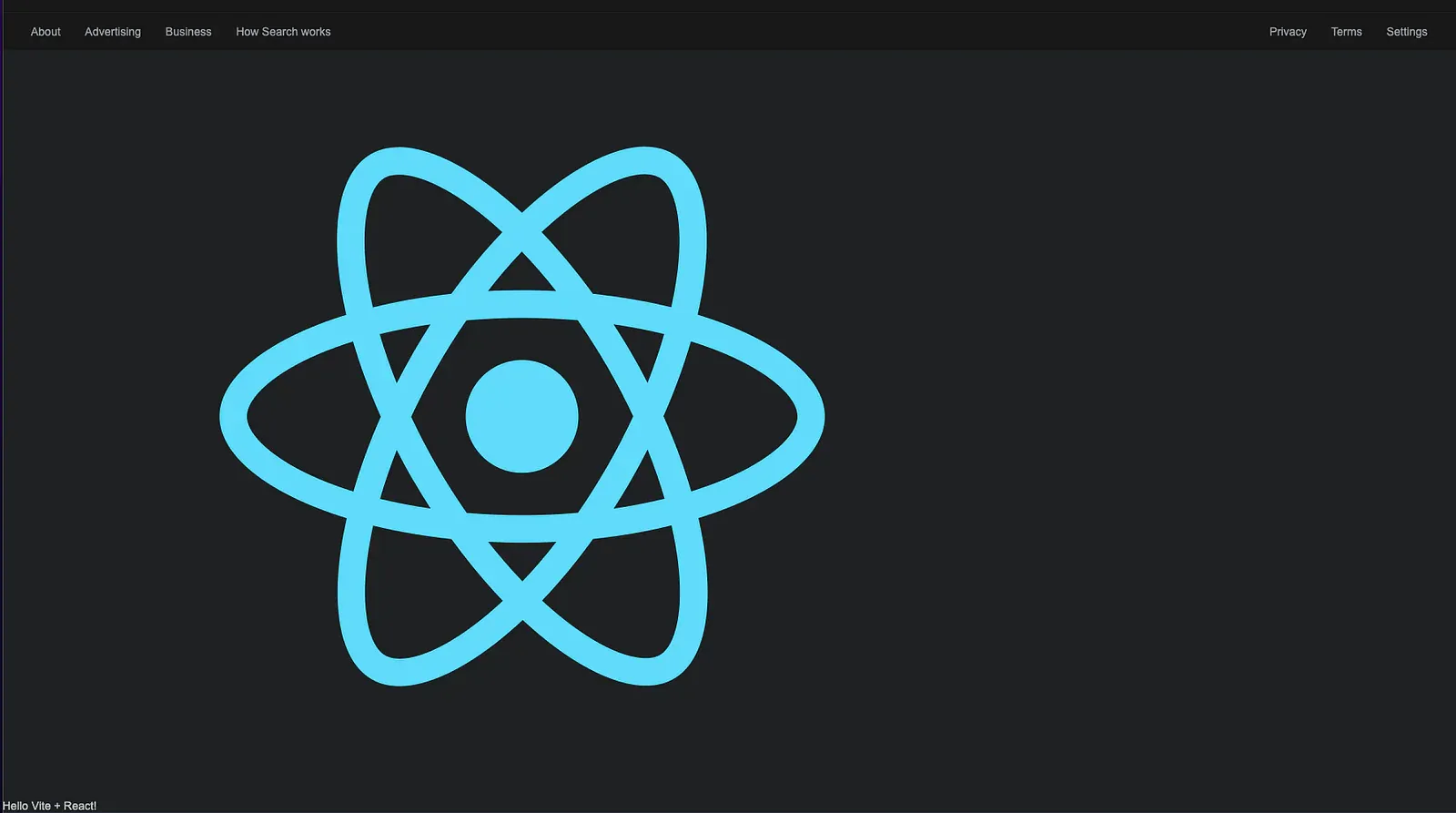
The footer part of google.com
Ok, so we do have something running, which is a good sign. But if I check the CSS properties of the image, they are not propagated. It basically has no styling, although we imported the necessary CSS files. Which brings me to my last step.
Isolating extension’s CSS using iFrame
To be able to propagate the CSS of the extension (as well as routing in the future, if you’ll need it) we’ll use another npm package, called react-frame-component . Just install it and edit your main.tsx accordingly:
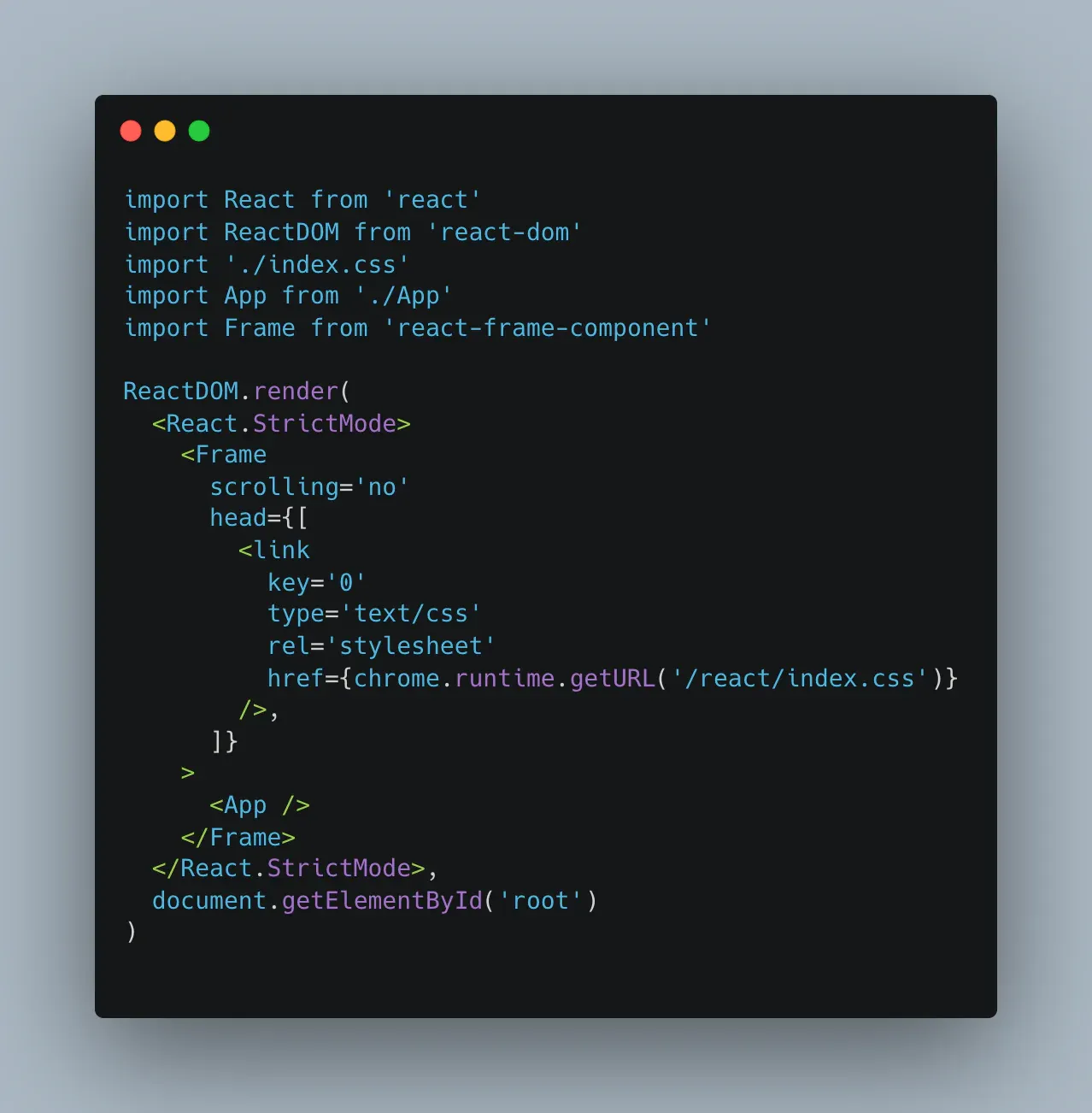
File: src/main.tsx
What we do here is wrap our app into an iframe and specify the CSS file in the head of the iframe.
Note: If you use styled-components or emotion this is not going to work. If you’d like, you can check the documentation for my package that resolves this issue:
https://www.npmjs.com/package/@pitis/react-styled-frame
And that’s it!
Now if we check Google again to see our app…
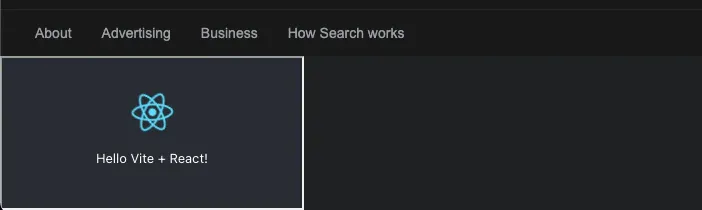
It’s there and it looks amazing!
Clone the git repo for quick start
GitHub - pitis/create-react-extension
Caveats
While in this tutorial I let the id of the main div in index.html remain as root you may want to change it, because many sites use that (since they also use React). You can change it to whatever you like, for instance ext_root .